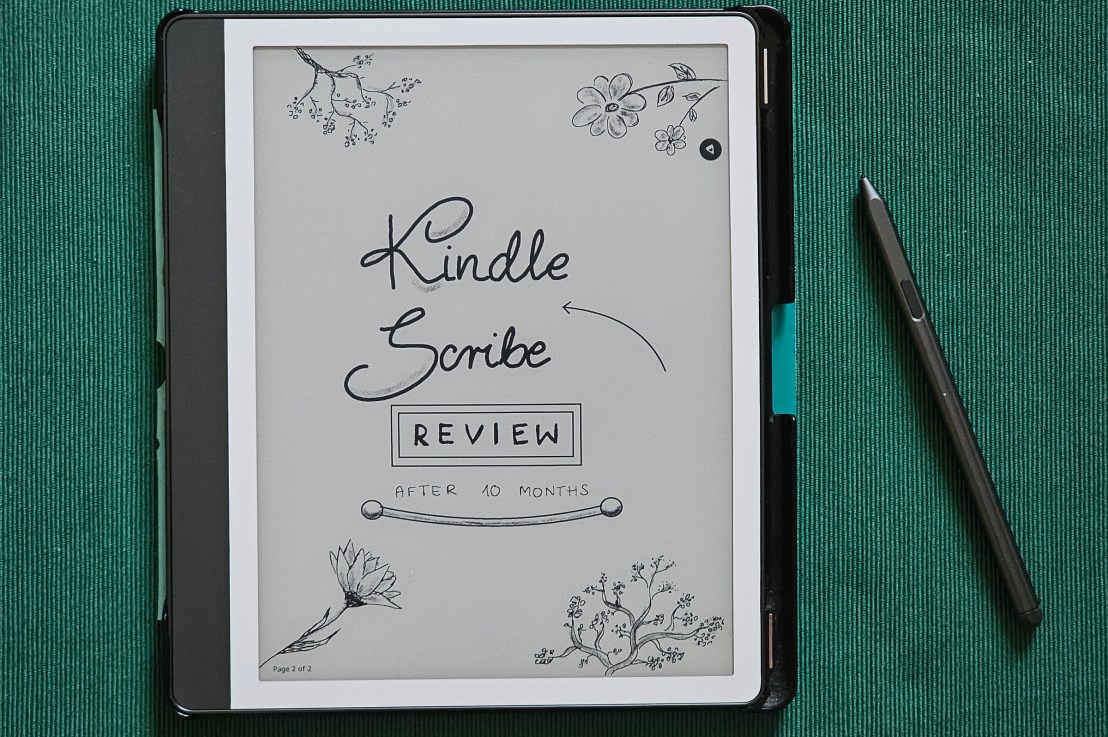
I’ve been using my Kindle Scribe extensively for the past 10 months, since I bought it around Black Friday last year. It actually revolutionised my life! I bought it primarily for writing blog posts, but I’ve also been using it at work, for tracking personal to do lists, and for reading ebooks. Whilst it has a few small flaws, Kindle Scribe was a great investment for me and my needs. Let’s take a look at its features, the pros, and the cons.
In this review, I will cover the following topics:
- What is Kindle Scribe
- Why I bought Kindle Scribe
- Features of digital notebooks in Kindle Scribe
- Handwriting and text recognition
- Sending digital notebooks via email
- General thoughts on writing on Kindle Scribe
- Drawing on Kindle Scribe
- Using Kindle Scribe as a web browser
- Reading ebooks on Kindle Scribe
- Battery life
- Flaws and things I don’t like about Kindle Scribe
What is Kindle Scribe
Kindle Scribe is a device from the Kindle ebook reader family, manufactured by Amazon. It’s effectively an ebook reader combined with a digital notebook/writing tablet.
The exact model I have is Kindle Scribe 1st generation, 2024 release.
Why I bought Kindle Scribe
The primary reason why I bought this device was to write my personal to-do lists (something I used to write on paper, ending up with lots of loose pieces of paper all over my desk), work related notes, and blog posts. In all honesty, writing blog posts was the main driver. I don’t like writing on a laptop, especially at home. And writing directly on WordPress, which I use behind the scenes, requires wi-fi. I couldn’t take my laptop to the park to write. I would also never take my laptop with me on my countryside trips, as it’s way too heavy. Writing on my phone instead passed both criteria, but I find writing long pieces on a phone uncomfortable. It also drains the battery too fast!
I never even knew that a digital notebook was a thing, until I saw a colleague use his Kindle Scribe in the office. I instantly knew it would be revolutionary for my blog post writing. I asked my colleague a ton of questions about his Kindle Scribe and he recommended it. I was sold.
Features of digital notebooks in Kindle Scribe
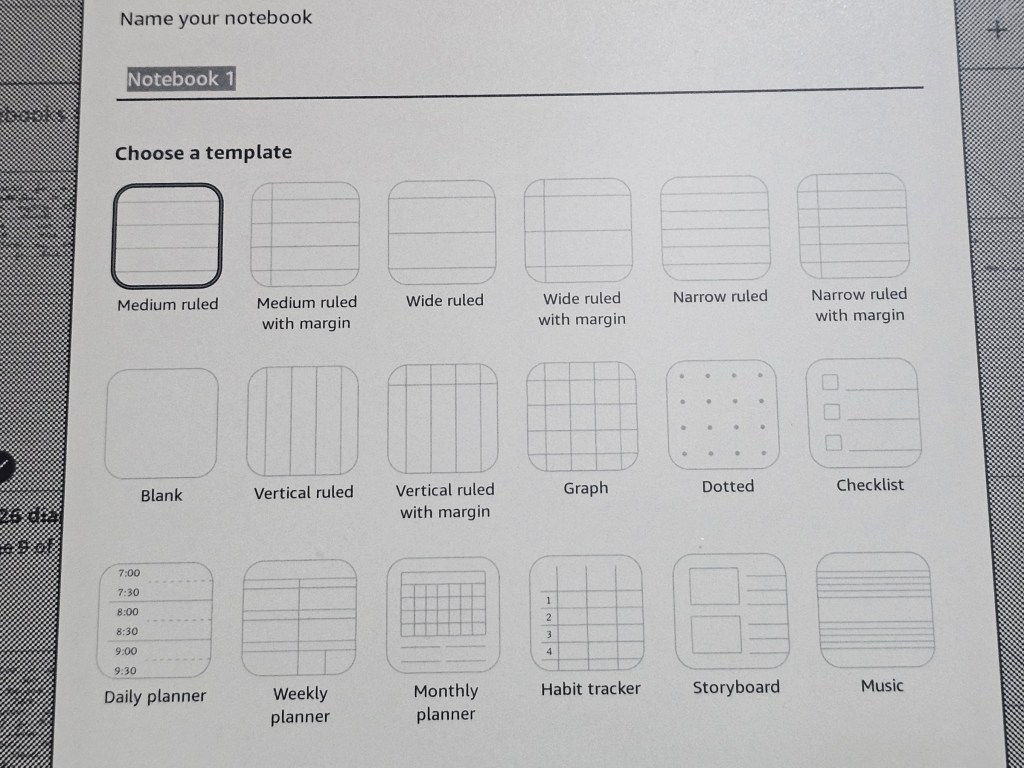
When you create a new document, you can choose from a few different layouts.
Personally, I almost solely use the narrow lines grid, but there are a few others to choose from, including some fancy ones like music or hourly daily planner.
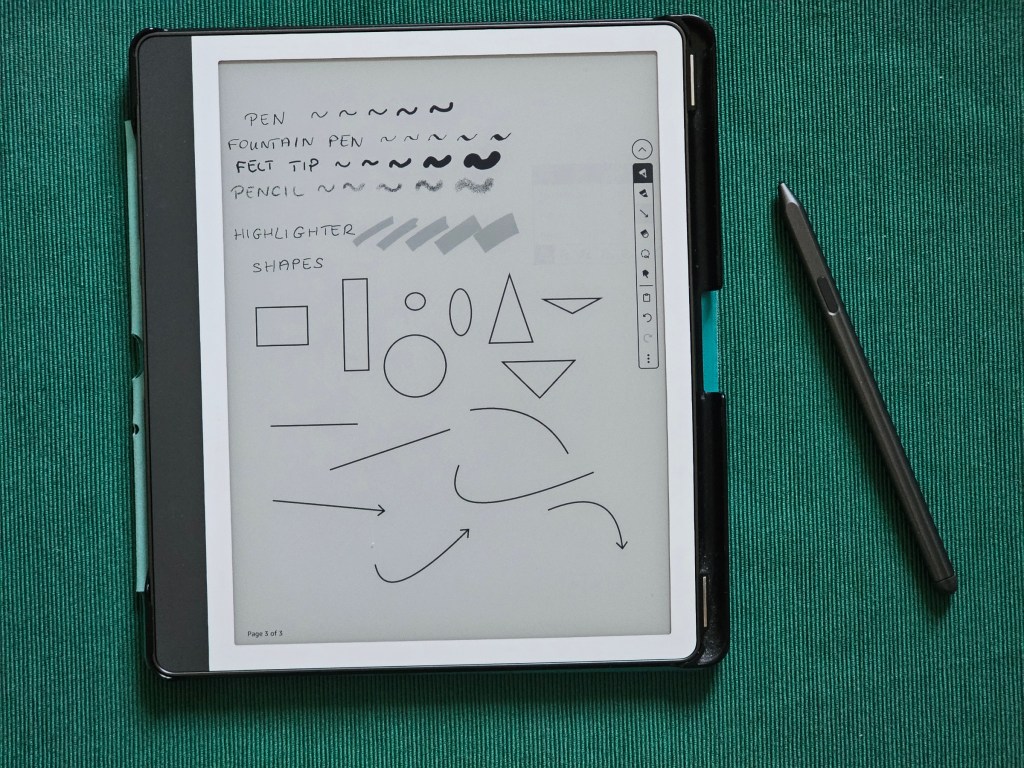
When you write inside your document, you can choose between a few pre-set writing tools: various pens, pencil or highlighter. For each of them, you can choose between a few sizes.
You can also create a few basic shapes, useful for creating diagrams: rectangles, circles, triangles, lines, and arrows. You can control the size of them, but not the line width. You can always go back and resize or move previously created shapes. You can add curves to lines and arrows.
Kindle Scribe comes with a stylus pen, and the back end of it works as an eraser. If you make a typo, it’s easy to erase it by rubbing the text with the back end of the stylus. No need to press any buttons!
Apart from being able to select from various writing tools, you can also select a portion of the text with a lasso tool, and then copy it to the clipboard and paste it somewhere else. You can also freely move the selected objects around the canvas.
Handwriting and text recognition
Personally, I find writing with the pen on Kindle Scribe very close to writing on real paper. The stylus is accurate (with one exception – more about it later), and there’s almost no gap between the tip of the pen and where the text appears on screen.
I used some cheap drawing tablets in the past, and they were a lot less accurate.
When you export the handwritten notes, you can choose to convert them to computer text. I imagine the accuracy of that conversion will vary depending on your handwriting. I’d say my handwriting is average – it’s not perfectly neat, but I don’t scribble like a doctor either. In most cases, the conversion is pretty good. When I write a whole blog post on my Kindle Scribe, I usually need to correct maybe a dozen of typos.
You can preview the handwritten text conversion before you email the file to yourself (or someone else) – you need to be connected to wi-fi for the preview to work, you can’t do it offline.
Sending the digital notebooks via email
You can easily share your digital notebook via email, as long as you’re connected to wi-fi. You can either convert your handwriting to computer text, or send the notebook via PDF with your original handwriting, enriched to a searchable text document.
By default, Kindle Scribe will suggest sending documents to the email address assigned to your device. You can just press a button to send the document, without having to type the whole email address. But if you want to send the document elsewhere, you can type the desired email address using the on-screen keyboard.
On that note – handwriting is only supported inside notebook documents. Outside of them, you need to type on the on-screen QWERTY keyboard. This applies to naming files, searching the ebook store, typing in the web browser and so on.
When you share a notebook via email and your wi-fi connection is good, it usually arrives in your inbox within a minute.
General thoughts on writing on Kindle Scribe
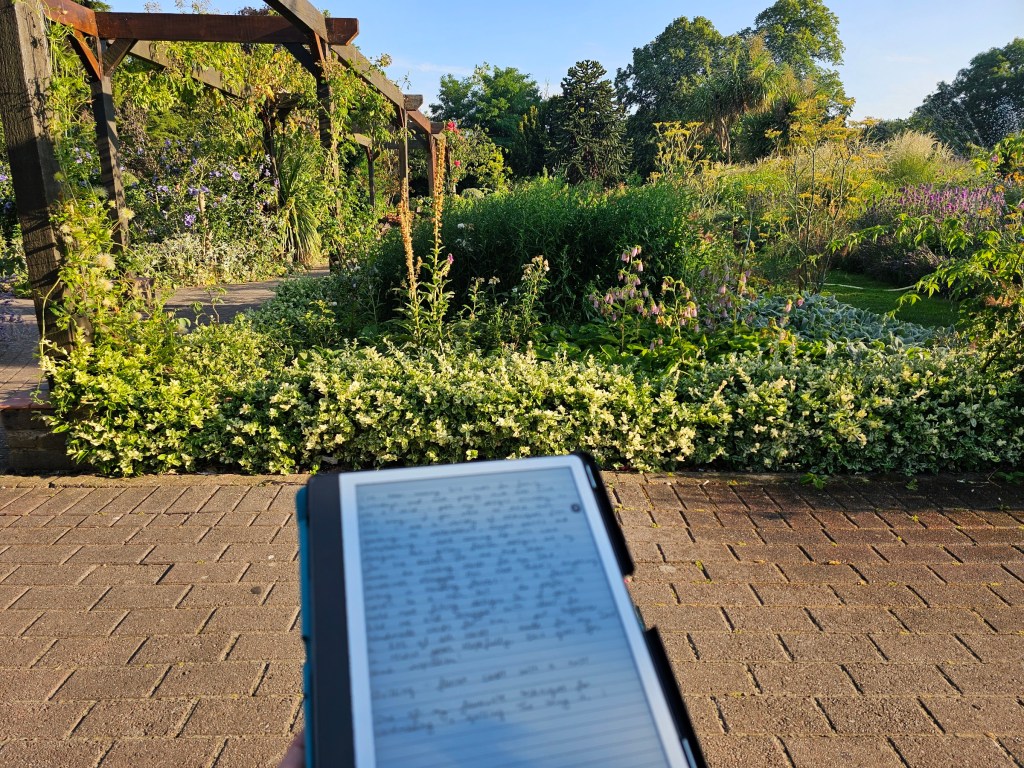
Overall, I love writing on my Kindle Scribe. I hoped it would revolutionise my blog writing, and it did. About 90% of my blog posts this year were written on my Kindle Scribe! I then convert my handwriting to text and send it to my email inbox, then copy it to WordPress to edit it, format, and add photos.
Performance-wise, Kindle Scribe can be a bit slow when you’re in the notebooks directory and press a button to create a new document and wait for all the options to appear on screen. Perhaps the second generation devices are better? It’s just a minor inconvenience, though. While inside a notebook, writing with the stylus is flawless and has no delay at all. There’s a bit of a lag when you move selected objects around the canvas, but if you primarily use the notebook for writing, it’s not a big deal.
Drawing on Kindle Scribe
Kindle Scribe isn’t a drawing tablet, but if you want to doodle something whilst on a train, there are ways to get creative and draw something cute.
You can create a blank document to make a blank canvas without any gridlines, and then use the different pen settings to draw. A traditional pen will give you sharp lines, while a pencil is good for shading.
The pencil tool has pressure detection – the harder you press the stylus, the darker the lines.
Using Kindle Scribe as a web browser
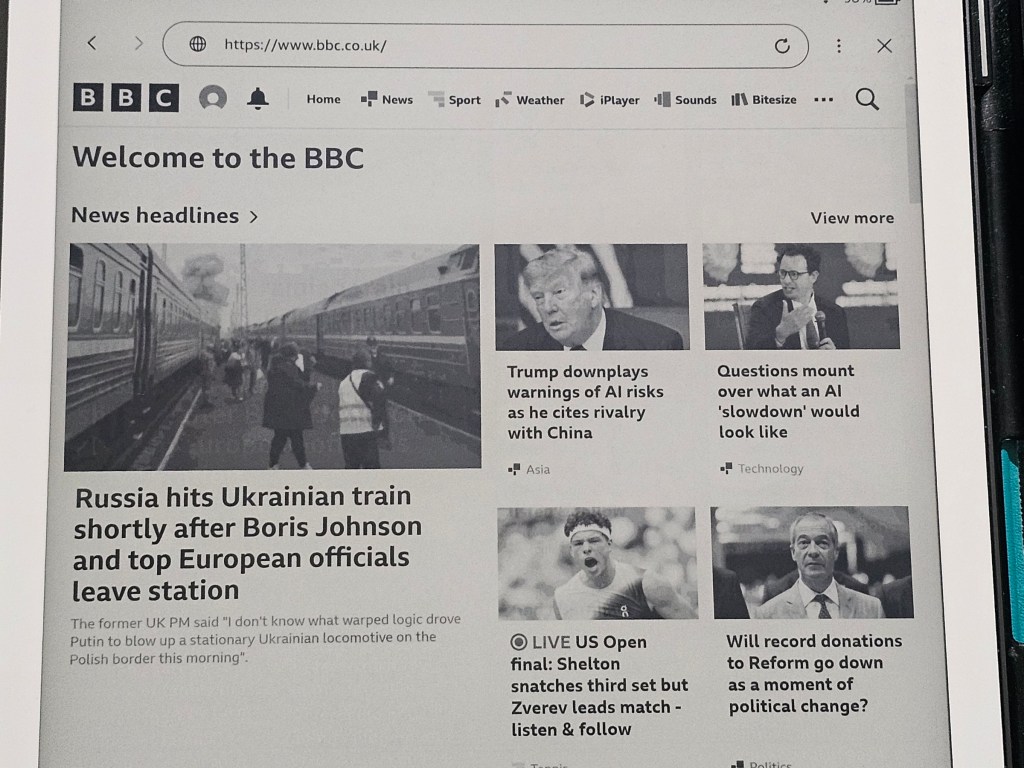
Kindle Scribe has a built-in web browser. Honestly, I’ve only used it once, to test it, shortly after I bought the device. It’s slow and not the most convenient to use. Simple websites will load fine, but I never found the need to use the browser. If I’m at home, I can use my phone or laptop to browse the Internet. When I’m not at home, the Kindle has no Internet connection anyway, so I can’t use the web browser.
Reading ebooks on Kindle Scribe
I won’t go into too much detail about reading ebooks on Kindle Scribe – there are many reviews of Kindle ebook readers online already!
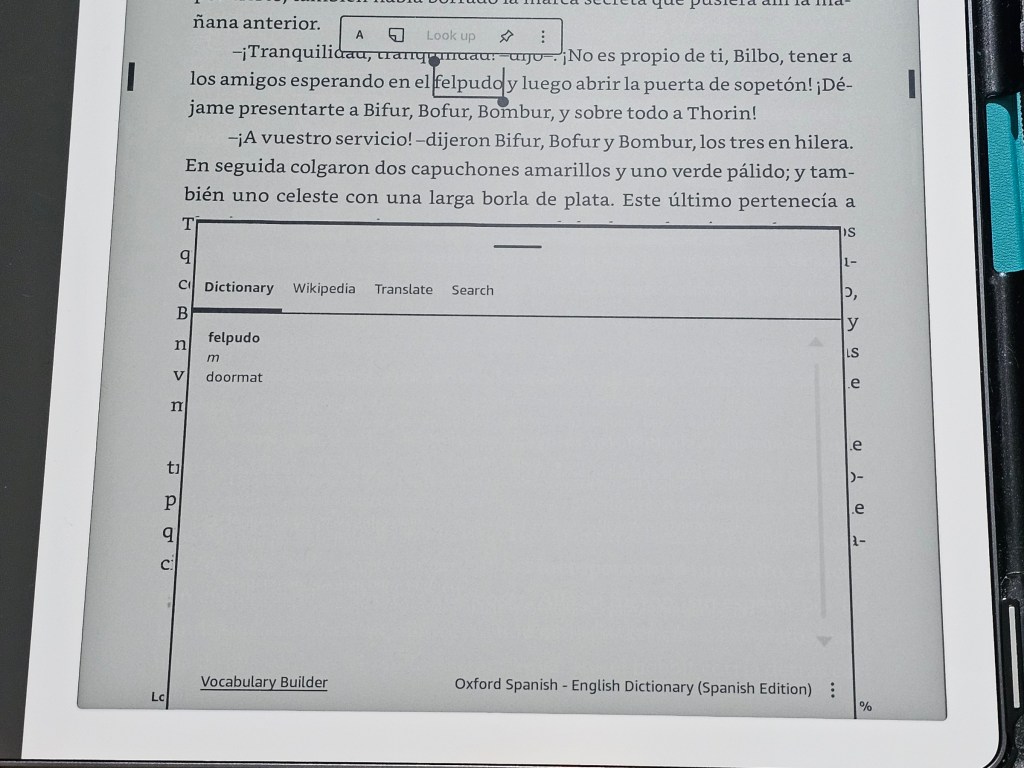
I never owned a Kindle device before, and what surprised me was that the device came with some pre-installed dictionaries. When I open a book in Spanish (which I’ve been learning for years), I can long press a word I don’t know and I’ll get a dictionary pop up with the translation. That’s super convenient for language learning! The words you look up are automatically added to a vocabulary list which you can then go back to and review. I haven’t made the most of it so far, but it seems like a great way to help language learning.
Battery life
With moderate use, Kindle Scribe holds battery for a few weeks. When I use it intensely for writing for several hours, the battery goes down a bit quicker – on writing-heavy weekends, I can deplete the battery in 2-3 days – but that’s quite rare.
Flaws and things I don’t like about Kindle Scribe
My review has been overwhelmingly positive, and I’m generally really happy with my Kindle Scribe. But, there are a few things that aren’t perfect.
I already mentioned performance issues when in the home menu view. Browsing directories in the notebooks or book library can feel slow and laggy. It’s frustrating in the moment, but in the grand scheme of things, it doesn’t bother me too much. I don’t spend much time browsing through the files on my device. 99% of the time I use my Kindle Scribe is in writing mode, and there are no performance issues there.
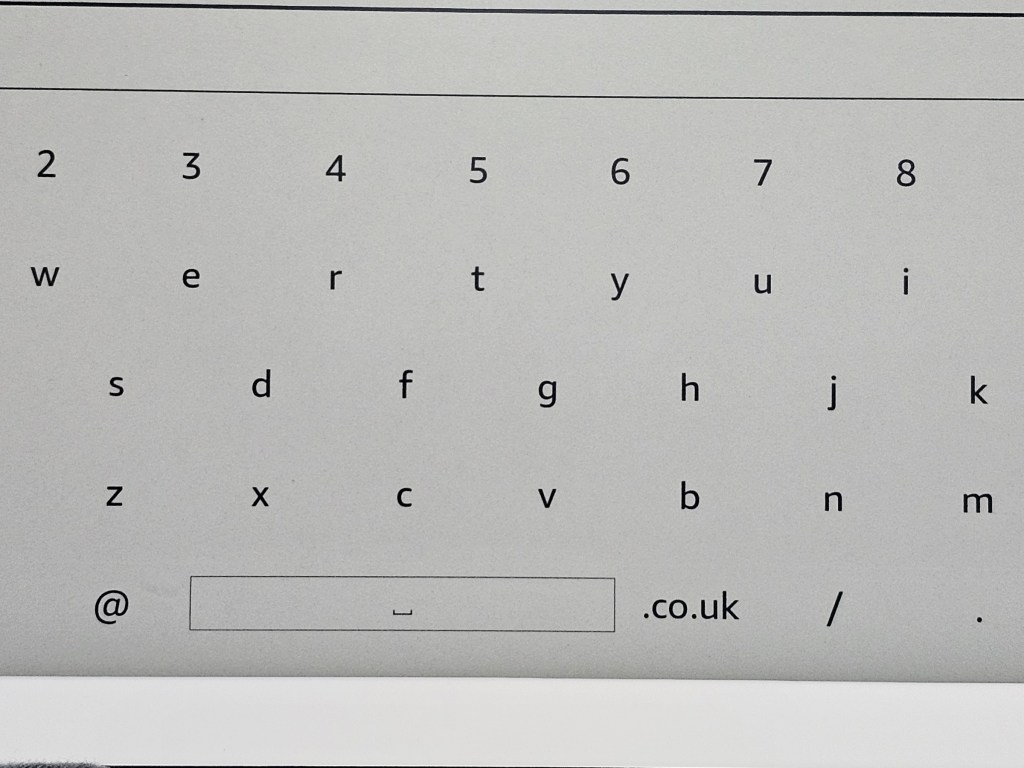
I live in the UK, and my Amazon account is registered in the UK. Every time an on-screen keyboard pops up, it has a shortcut for .co.uk. Useless! I’m pretty sure most people in the UK have emails ending with .com and visit .com websites. I really wish I could have the .com shortcut instead.
I previously mentioned that the pen’s nib isn’t always accurate for writing. I noticed that the written line is skewed sometimes near the edges of the canvas. It doesn’t seem to be a fault with the Kindle itself – apparently, it’s a common issue when you have a case for your device which includes metal/magnetic parts, and mine does. The impact is minimal, though.
Summary
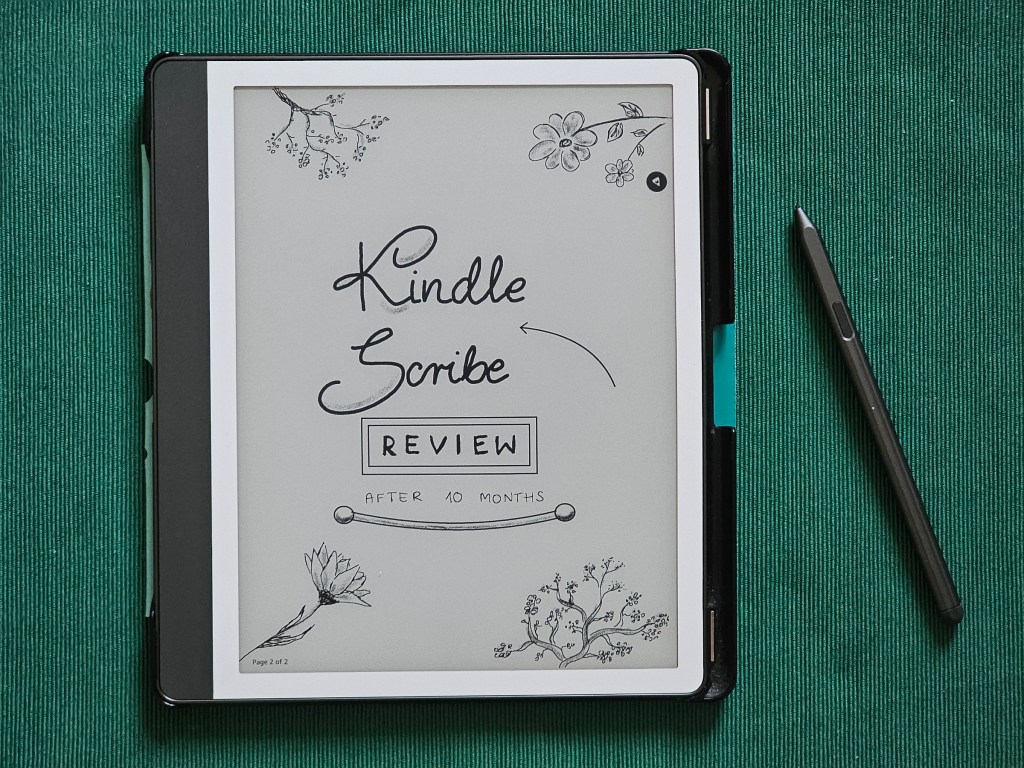
Overall, I’m really happy with my Kindle Scribe. I’ve had it for nearly a year, and I’ve used it extensively. If I leave the house for a few hours, my Kindle Scribe goes with me. Right now, I’m writing this review on the device itself – like the majority of my blog posts this year. If you have the patience, you can create pretty cute drawings in greyscale on a Kindle Scribe.
Outside of notebook writing mode Kindle Scribe can be a bit slow, but it doesn’t bother me too much. Browsing through the list of ebooks or notebooks isn’t the main activity, after all.
Also see: